Posts

Showing posts with the label Google Apps

Force Copy: A Teacher's Best Friend

Image
  Tired of students accidentally editing your original Google Doc or Slide Deck? Or maybe you want to provide a template for your colleagues without risking unwanted changes? The "force copy" function is your new secret weapon! What is Force Copy? Force copy is a simple trick that turns your shareable Google Doc or Slide Deck into a template. Instead of allowing others to directly edit your original file, they're prompted to make a copy for themselves. This preserves your master copy while giving everyone their own version to work on. How to Force Copy It's easier than you think! Share your document: Make sure your document is shared with "Anyone with the link" or "Public". Grab the link: Copy the shareable link to your document. Edit the link: Replace the word "edit" at the end of the link with "copy". For example, if your link was originally https://docs.google.com/document/d/1Hf12345/edit , you would change it to https://d...
Google Applied Digital Skills: Supporting New Zealand Teachers in the Digital Technologies Curriculum

Image
Let's chat about Applied Digital Skills , a sweet program by Google. It's all about arming students with the digital skills they need to shine in school, work, and life. The cool part? It's aligned with New Zealand's Digital Technologies curriculum, and it's here to lend a hand to our Kiwi teachers. Applied Digital Skills has got your back, with a bunch of resources to support you in implementing the New Zealand Digital Technologies curriculum. Here's what's in the toolkit: * Lesson plans: You'll find a variety of lesson plans that match up with the New Zealand Digital Technologies curriculum. These plans are a breeze to follow, complete with step-by-step instructions, along with resources for both students and teachers. * Digital tools: It's in cahoots with Google's digital tools like Docs, Sheets, Slides, and Drive. That means you can easily integrate these digital tools into your lessons, giving your students hands-on experience. * Professiona...

Using Emojis in Google Classroom

Image
Emojis can add a creative and interactive dimension to your Google Classroom topics. In this post, I'll guide you through the process of using emojis within topics and explain why it's a valuable addition. Why Use Emojis in Google Classroom Topics? 1. Visual Organisation: Emojis can be used as topic icons to make your Google Classroom more visually organised and attractive. They help students quickly identify different subjects or modules. 2. Engagement: Emojis can make topics more appealing. They add an element of fun and can pique interest in the subject matter. 3. Personalisation: Emojis allow you to infuse a bit of your personality into your virtual classroom. You can choose emojis that reflect your teaching style or the topic's content. How to Add Emojis to Google Classroom Topics 1. Access Classwork: Start by navigating to the "Classwork" tab in your Google Classroom. 2. Create a Topic: Click the "+" button to create a new topic. This is where you...

Google Chrome's Reading Mode

Image
Utilising Google Chrome's Reading Mode for Educators Kia ora, fellow educators! Today, let's delve into a handy tool that can significantly benefit both teachers and students: Google Chrome's Reading Mode. This feature allows you to strip away distractions from web pages, making the content more accessible and engaging, which can be particularly advantageous in an educational setting. Why Should Educators Embrace Reading Mode? 1. Enhancing Accessibility Reading Mode enables educators to customise fonts, font sizes, line spacing, and text/background colours. This flexibility makes it easier to cater to students with dyslexia or other learning needs, ensuring that reading materials are tailored to their specific needs. 2. Focusing on Core Content Reading Mode helps students concentrate solely on the essential text by eliminating distractions like ads, images, and sidebars. This proves invaluable for easily distracted students or those struggling to stay on task. 3. Boosting R...

Google Keep

Image
I'm super stoked to share some thoughts about Google Keep today! 🎉 If you're not already using it, you're seriously missing out on something fab. Let's dive in and explore why Keep is the ultimate tool for teachers and students alike.  First off, what's not to love about Google Keep? It's like having a digital Post-it note on steroids! You can jot down notes, create to-do lists, and even add images to keep things fresh and exciting. It's your all-in-one organisation companion, and it'll keep you and your students on track. Now, let's talk benefits: 1. Simplicity and User-Friendly Interface: Keep is so intuitive that even your tech-challenged neighbour could master it. It's all about ease of use, and that's a huge win for us busy teachers. 2. Accessibility Across Devices: Whether you're on your laptop, tablet, or phone, Keep has got your back. No more searching for that lost piece of paper with your essential notes on it. It's all syn...

Search Within - Google Drive

Image
  Kia ora, fellow educators! 📚 In today's Tech Tip Tuesday, we're diving into the powerful "Search Within" function in Google Drive. As teachers immersed in the digital realm, you're likely managing a treasure trove of files from various sources – students, colleagues, shared drives, and more. Here's why "Search Within" is your digital ally, and why you should consider it over the conventional search method. 1. Precision at Your Fingertips 🧐 Search within a specific folder, ensuring pinpoint accuracy in finding files, assignments, and resources. 2.  Time-Saver Extraordinaire ⏱️ Quickly locate teaching materials, lesson plans, or shared resources, maximising your teaching efficiency.  Follow the steps in the gif I made below, to support the process. So, there you have it! "Search Within" in Google Drive is your digital compass, helping you navigate the vast sea of files and resources in the digital classroom. 🌐 Give it a go, and watch you...

Stop Motion Animation (on a budget)

Image
Kia ora, fellow educators! It's Motivation Monday, and today we're diving into the exciting world of stop motion animation. Whether you're just curious about adding a dash of creativity to your classroom or looking for a fresh approach to teaching, I've got you covered. What is Stop Motion Animation? First things first, let's break it down. Stop motion animation is a captivating filmmaking technique where you bring inanimate objects or drawings to life, frame by frame. It's like making magic happen on screen! Getting Started with iPads and iMovie I teach in a fully-spec'd out Media studio, complete with green screens, and tonnes of tripods, iPads and macbooks.  So for a while, I've been using iPads and iMovie to teach stop motion animation. It's user-friendly and perfect for beginners. If you're fortunate enough to have these resources then here's a quick overview: 1. Preparation: Gather your materials - iPads, objects to animate, and a tripo...

Google Smart Chips

Image
Google Smart Chips Unveiled Google Smart Chips are like the magic glue that effortlessly connects all your teaching resources in one place. They're all about simplifying your life as an educator and making teaching a breeze. Imagine this: You're planning a unit, and you want to link a relevant document without all the fuss. Google Smart Chips got you covered. They allow you to embed links to Google Docs, Sheets, Slides, and Forms right in your lesson plan. No more endless searching or copying and pasting links. It's as easy as mentioning the document's name, and the chip does the rest. YouTube Clips Integration YouTube is a treasure trove of educational content, but finding and incorporating clips can be time-consuming. Google Smart Chips come to the rescue again. By simply mentioning a YouTube video's title or keyword, these chips embed the video directly into your plan or document. It's like having a personal YouTube curator at your service. Google Apps Harmon...

Digital Mosaics - A lesson utilising Google Drawings

Image
Kia ora, fellow educators! Today, we're diving into the creative world of digital mosaics using Google Drawings. I've also created a handy video tutorial to guide you through the process. Let's explore how this activity can align with specific progress outcomes from the New Zealand Curriculum for Digital Technologies and benefit your classrooms. Below is part of my lesson plan.  This demonstrates the priorities that I focussed on when implementing this lesson in my space. Three Compelling Reasons to Use Digital Mosaics: 1. Enhanced Creativity: Digital mosaics allow students to express their creativity and artistic skills in a unique way. They can experiment with colour, patterns, and shapes, fostering their artistic talents while working with technology. 2. Cross-Curricular Integration: Mosaics can be integrated into various subjects, from history (creating mosaic representations of historical figures) to science (designing mosaic depictions of cells). This versatility make...

Templates in Action: Streamlining Teacher Communications

Image
  In our ever-evolving digital landscape, harnessing the power of tools like Gmail's Template Function can be a game-changer. Let's dive into how this feature can elevate your communication game, specifically in scenarios that teachers commonly encounter. Templates in Action: Streamlining Teacher Communications Do you frequently find yourself composing emails time and again, with the same or similar context? Utilising 'templates' is all about working smarter, not harder. Making use of this function will mean that every time you wish to recreate an email, you can access it with the press of a few buttons, without having to start from scratch. Here's how it works: Effortless Implementation of Templates: Creating these templates is easier than you might think. Follow these steps to set them up: 1. Compose the email as you normally would, adding the relevant details. 2. Click the three dots in the email toolbar, navigate to "Templates," and select "Save d...

Elevating Classroom Interaction: Google Docs' Drop-Down Feature for Self and Peer Assessment

Image
  Hello, dedicated educators! 👋 If you're all about embracing digital tools to enhance your teaching game, then you're in for a treat. Today, let's dive into a handy feature that Google Docs has to offer: the drop-down feature! 🚀 Empowering Self and Peer Assessment Imagine this: you're on a mission to make student assessment more engaging and interactive. Whether it's self-assessment or peer assessment, the Google Docs drop-down feature is about to become your new best friend. It's like giving your students the power to explore their learning journey in a whole new way. 🌟 But wait, there's more! This feature isn't just for assessments. You can also use it to streamline your teaching tasks. Create drop-down menus for frequently used comments, lesson plan templates, or any other resources you often refer to. It's like having your own digital assistant! 🌟 Feeling a tad unsure? No worries! Check out my friendly tutorial video below for a step-by-step...

Organise Your Classroom Effortlessly with 'Schedule Send': A Teacher's Time-Saving Guide

Image
  Hello, fellow educators! Today, let's dive into a simple yet effective trick that can be a real game-changer in managing your classroom tasks efficiently. We're talking about the wonderful world of 'schedule send' and how you can use its features to streamline communication and stay organised like a pro. Schedule Emails: Your Secret to Stress-Free Planning Ever found yourself juggling a hundred things, like during report writing weeks or when you're not feeling your best? Here's where the scheduling send feature swoops in to save the day. Imagine having your emails and google classroom posts all set to go out, even when you're knee-deep in responsibilities or down with a cold. The process? A breeze. After crafting your masterpiece, just find the 'Schedule send button' (see below). You can choose the precise date and time you want your email to land in your readers' inboxes. No more rushing or worrying about sending on time – your content will b...

Getting the Most Out of Google Docs: 3 Essential Features for Teachers

Image
Hello to all you amazing educators out there! 👋 If you're all about making the most of technology in your teaching journey, Google Docs is like your superhero sidekick. It's not just for tech whizzes – it's a tool that every teacher can use to bring some digital magic into their classrooms. Let's dive into three Google Docs features for busy teachers: 1. Teamwork Made Easy: Real-time Collaboration Picture this: Your students are working together on a group project, each with their own ideas and typing speeds. Instead of chaos, you can have harmony with Google Docs. Start a new document, click the "Share" button at the top right, and invite your students to join in. Everyone can type, edit, and brainstorm in real-time, all in one doc. It's like having a digital whiteboard that never gets cluttered. And don't worry about losing work – Google Docs saves everything automatically. So when your students are busy creating, you can step in to guide and suppor...

An Addition to Google Classroom: Practice Sets

Image
Today, I'm going to share with you the magic of using practice sets in Google Classroom. Trust me; it's a game-changer! These nifty tools are like virtual worksheets or quizzes that you can create and assign to your students quickly. Here's how it works:  1. Create Custom Practice Sets: You can craft personalised practice sets tailored to your lesson. Add questions of various types – multiple-choice, short answer, or even file attachments. The best part? You're in control, so you can make it as fun or challenging as you like. 2. Assign with a Click: Once your practice set is ready, it's time to share the knowledge! Just hit that "Assign" button, and Google Classroom takes care of the rest. 3. Instant Feedback: Here comes the real magic. As your students work on the practice sets, Google Classroom provides instant feedback on their answers. Students know right away if they're on the right track or need some extra help. 4. Adaptive Learning: This is wher...

Enhancing Digital Literacy with Google Classroom

Image
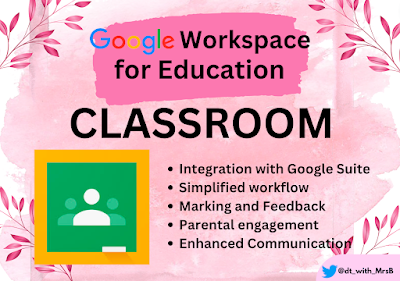
Greetings, fellow educators!  As a digital technologies teacher, I am passionate about empowering students with the necessary digital skills to thrive in our technology-driven world. Today, I want to share five interesting facts about Google Classroom – a powerful tool that can significantly enhance digital literacy in our students. 1. Seamless Integration with G Suite: Google Classroom seamlessly integrates with other G Suite applications, such as Google Docs, Sheets, Slides, and more. This feature allows students and teachers to collaborate, create, and share digital content effortlessly, fostering a collaborative learning environment. 2. Simplified Workflow: One of the most significant benefits of Google Classroom is its user-friendly interface, streamlining the teaching process. Teachers can easily create and distribute assignments, manage student submissions, and provide real-time feedback, making the digital learning experience more efficient and effective. 3. Time-saving mar...

Using Google Sites to Organise Student Learning

Image
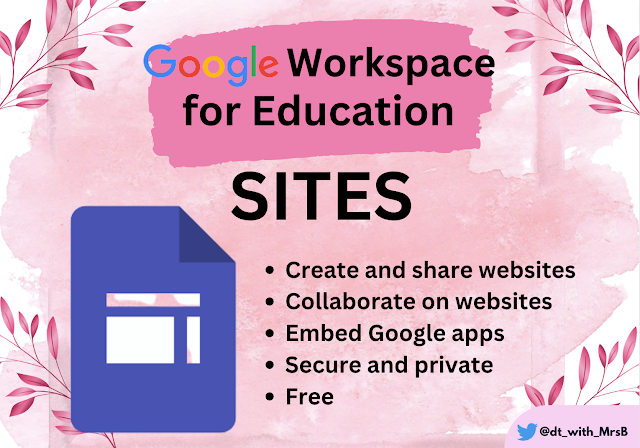
As a digital technologies teacher, I'm always looking for ways to use technology to enhance student learning. One of the things I've been doing lately is having my students create Google Sites to collate their learning in my subject area. Each student's site includes an image and about the creator, as well as photos, film, and screenshots from their eight sessions in my class. This gives students a central location to store all of their work, and it also makes it easy for them to share their learning with others. I recently had "student led conferences" where parents came in and students talked through their learning. Thanks to the collection of learning activities in the Google Sites, the process was streamlined. Students were able to use their sites to explain their learning to their parents, and play the videos that they created. I was really impressed with how well the Google Sites worked for student led conferences. It was a great way for students to showcase...