Posts

Showing posts with the label Data Storage

Enhancing Teaching Efficiency with Google Chrome's QR Code Feature
Image
 In the dynamic landscape of education, the integration of technology continually shapes our teaching methods and resource dissemination. One remarkable tool that I've found incredibly beneficial is the "Create QR Code from Browser" feature in Google Chrome. This simple yet powerful feature enables swift sharing of web pages, articles, videos, and interactive resources with your students, transforming the way we can deliver content in the classroom. Seamless Sharing in Six Simple Steps 1. Access the Web Page: Begin by opening the desired web page you wish to share with your students. 2. Navigate to the Address Bar: Click on the address bar at the top of your browser window. 3. Locate the "Share" Icon: Look for the square icon with an arrow pointing upwards. 4. Select "Create QR Code": Click on the "Share" icon and choose the "Create QR Code" option. 5. Instant Code Generation: Voilà! A QR code representing the webpage appears on you...

A Digital Solution for Pocket Money: SquareOne App

Image
Kia ora, fellow educators and parents! Today's blog post takes a slight detour from our usual content to introduce a game-changer for teachers who are also parents, especially those with younger children. Meet SquareOne , a Kiwi-created app designed to revolutionise the way we manage pocket money. As a teacher and a parent preparing for an upcoming family trip to Australia, I found myself on a quest to instil financial responsibility in my 12 and 14-year-olds. The challenge was to discover a digital tool that not only facilitated money management, but also made the process engaging and educational. SquareOne emerged as the answer to my quest. This New Zealand-developed app allows parents to set chores and allocate corresponding amounts to their children. The beauty lies in its simplicity – kids submit completed chores, and parents approve payments through the app. The real magic happens when the money is transferred from the parent's account to the child's account. SquareOn...

Tech Tip Tuesday: Creating Hassle-Free Sharable Links in Google Docs

Image
Kia ora, fellow educators! 🌟 Have you ever eagerly clicked on a hyperlink, only to find yourself stuck on a 'share request' page? Annoying, right? Let's tackle that inconvenience and make link-sharing a breeze. Clicking on a link that leads to a 'share request' page can be frustrating for both the document creator and the person trying to access it. But fear not, there's a simple solution to avoid this digital roadblock. Prevention is Key: Adjust Sharing Settings Before creating links, ensure your documents are ready for sharing. You can modify the access settings for individual documents or go big by making an entire folder sharable. This way, any docs linked from that folder will automatically grant access without the pesky 'share request.' Quick Steps to Share without Stress: 1. Open your Google Doc (or any Google app). 2. Click on the 'Share' button in the top right corner. 3. Adjust the access settings to either 'Anyone with the link...

Using Emojis in Google Classroom

Image
Emojis can add a creative and interactive dimension to your Google Classroom topics. In this post, I'll guide you through the process of using emojis within topics and explain why it's a valuable addition. Why Use Emojis in Google Classroom Topics? 1. Visual Organisation: Emojis can be used as topic icons to make your Google Classroom more visually organised and attractive. They help students quickly identify different subjects or modules. 2. Engagement: Emojis can make topics more appealing. They add an element of fun and can pique interest in the subject matter. 3. Personalisation: Emojis allow you to infuse a bit of your personality into your virtual classroom. You can choose emojis that reflect your teaching style or the topic's content. How to Add Emojis to Google Classroom Topics 1. Access Classwork: Start by navigating to the "Classwork" tab in your Google Classroom. 2. Create a Topic: Click the "+" button to create a new topic. This is where you...

Google Keep

Image
I'm super stoked to share some thoughts about Google Keep today! 🎉 If you're not already using it, you're seriously missing out on something fab. Let's dive in and explore why Keep is the ultimate tool for teachers and students alike.  First off, what's not to love about Google Keep? It's like having a digital Post-it note on steroids! You can jot down notes, create to-do lists, and even add images to keep things fresh and exciting. It's your all-in-one organisation companion, and it'll keep you and your students on track. Now, let's talk benefits: 1. Simplicity and User-Friendly Interface: Keep is so intuitive that even your tech-challenged neighbour could master it. It's all about ease of use, and that's a huge win for us busy teachers. 2. Accessibility Across Devices: Whether you're on your laptop, tablet, or phone, Keep has got your back. No more searching for that lost piece of paper with your essential notes on it. It's all syn...

Search Within - Google Drive

Image
  Kia ora, fellow educators! 📚 In today's Tech Tip Tuesday, we're diving into the powerful "Search Within" function in Google Drive. As teachers immersed in the digital realm, you're likely managing a treasure trove of files from various sources – students, colleagues, shared drives, and more. Here's why "Search Within" is your digital ally, and why you should consider it over the conventional search method. 1. Precision at Your Fingertips 🧐 Search within a specific folder, ensuring pinpoint accuracy in finding files, assignments, and resources. 2.  Time-Saver Extraordinaire ⏱️ Quickly locate teaching materials, lesson plans, or shared resources, maximising your teaching efficiency.  Follow the steps in the gif I made below, to support the process. So, there you have it! "Search Within" in Google Drive is your digital compass, helping you navigate the vast sea of files and resources in the digital classroom. 🌐 Give it a go, and watch you...

Google Smart Chips

Image
Google Smart Chips Unveiled Google Smart Chips are like the magic glue that effortlessly connects all your teaching resources in one place. They're all about simplifying your life as an educator and making teaching a breeze. Imagine this: You're planning a unit, and you want to link a relevant document without all the fuss. Google Smart Chips got you covered. They allow you to embed links to Google Docs, Sheets, Slides, and Forms right in your lesson plan. No more endless searching or copying and pasting links. It's as easy as mentioning the document's name, and the chip does the rest. YouTube Clips Integration YouTube is a treasure trove of educational content, but finding and incorporating clips can be time-consuming. Google Smart Chips come to the rescue again. By simply mentioning a YouTube video's title or keyword, these chips embed the video directly into your plan or document. It's like having a personal YouTube curator at your service. Google Apps Harmon...

Organising your Google Drive

Image
In this blog post, we'll explore the benefits of effectively organising your Google Drive. Whether you're a digital technologies specialist or a solo teacher looking to enhance your skills, a well-organised Drive can make your life easier. Let's dive in. The Art of Folders 1. Logical Numbering: Start by numbering your folders to maintain a logical order. For instance, begin with "01 - Planning," "02 - Resources," and so on. 2. Colour Coding: Colour-coding your folders can help categorise subjects, terms, or any system that suits your needs. 3. Emojis in Names: Did you know you can add emojis to your file or folder names in Google Drive? Emojis can bring creativity and fun to your organisation. To do this, right-click on the folder or file, select "Rename," and insert your chosen emoji. Perhaps a 📚 for resources or 🗓️ for planning? Visual Guide I've prepared a short video to guide you through these steps visually. Check it out below: Benef...

Google Slides Companions

Image
For today's 'tech tool', let's delve into the world of captivating slide decks for your classroom using two fantastic tools: SlidesMania and SlidesCarnival, alongside Google Slides. As an educator, you already grasp the significance of engaging presentations. Let's explore how these platforms can help you achieve precisely that and more. SlidesMania: Unleash Your Creativity SlidesMania offers a wealth of free, customisable templates that breathe life into your presentations. Whether it's a lesson about history or a project related to science, SlidesMania provides themes that resonate with your subject matter. Navigating the platform is straightforward – select your preferred template, click, and start adding your content. These templates are beautifully crafted, saving you valuable time while ensuring a polished final outcome.  Here's an example: SlidesCarnival: Elegance and Simplicity On the other hand, SlidesCarnival is renowned for its elegant and minim...

Templates in Action: Streamlining Teacher Communications

Image
  In our ever-evolving digital landscape, harnessing the power of tools like Gmail's Template Function can be a game-changer. Let's dive into how this feature can elevate your communication game, specifically in scenarios that teachers commonly encounter. Templates in Action: Streamlining Teacher Communications Do you frequently find yourself composing emails time and again, with the same or similar context? Utilising 'templates' is all about working smarter, not harder. Making use of this function will mean that every time you wish to recreate an email, you can access it with the press of a few buttons, without having to start from scratch. Here's how it works: Effortless Implementation of Templates: Creating these templates is easier than you might think. Follow these steps to set them up: 1. Compose the email as you normally would, adding the relevant details. 2. Click the three dots in the email toolbar, navigate to "Templates," and select "Save d...

Elevating Classroom Interaction: Google Docs' Drop-Down Feature for Self and Peer Assessment

Image
  Hello, dedicated educators! 👋 If you're all about embracing digital tools to enhance your teaching game, then you're in for a treat. Today, let's dive into a handy feature that Google Docs has to offer: the drop-down feature! 🚀 Empowering Self and Peer Assessment Imagine this: you're on a mission to make student assessment more engaging and interactive. Whether it's self-assessment or peer assessment, the Google Docs drop-down feature is about to become your new best friend. It's like giving your students the power to explore their learning journey in a whole new way. 🌟 But wait, there's more! This feature isn't just for assessments. You can also use it to streamline your teaching tasks. Create drop-down menus for frequently used comments, lesson plan templates, or any other resources you often refer to. It's like having your own digital assistant! 🌟 Feeling a tad unsure? No worries! Check out my friendly tutorial video below for a step-by-step...

Getting the Most Out of Google Docs: 3 Essential Features for Teachers

Image
Hello to all you amazing educators out there! 👋 If you're all about making the most of technology in your teaching journey, Google Docs is like your superhero sidekick. It's not just for tech whizzes – it's a tool that every teacher can use to bring some digital magic into their classrooms. Let's dive into three Google Docs features for busy teachers: 1. Teamwork Made Easy: Real-time Collaboration Picture this: Your students are working together on a group project, each with their own ideas and typing speeds. Instead of chaos, you can have harmony with Google Docs. Start a new document, click the "Share" button at the top right, and invite your students to join in. Everyone can type, edit, and brainstorm in real-time, all in one doc. It's like having a digital whiteboard that never gets cluttered. And don't worry about losing work – Google Docs saves everything automatically. So when your students are busy creating, you can step in to guide and suppor...

Enhancing Digital Literacy with Google Classroom

Image
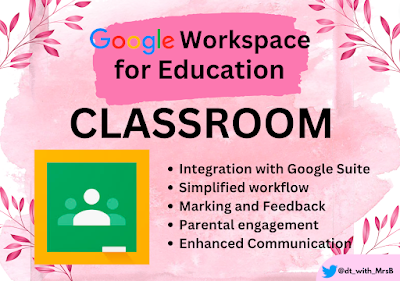
Greetings, fellow educators!  As a digital technologies teacher, I am passionate about empowering students with the necessary digital skills to thrive in our technology-driven world. Today, I want to share five interesting facts about Google Classroom – a powerful tool that can significantly enhance digital literacy in our students. 1. Seamless Integration with G Suite: Google Classroom seamlessly integrates with other G Suite applications, such as Google Docs, Sheets, Slides, and more. This feature allows students and teachers to collaborate, create, and share digital content effortlessly, fostering a collaborative learning environment. 2. Simplified Workflow: One of the most significant benefits of Google Classroom is its user-friendly interface, streamlining the teaching process. Teachers can easily create and distribute assignments, manage student submissions, and provide real-time feedback, making the digital learning experience more efficient and effective. 3. Time-saving mar...

Short Films

Image
Creating short films can support students' understanding of DDDO and computational thinking in a number of ways. For example, students can use short films to: Explore the different ways that data can be collected, stored, processed and used.   Learn about the different types of digital devices and systems.   Break down problems into smaller steps, and use logical thinking to solve them.   Come up with new ideas, and use digital technologies to bring them to life. Work with others to solve problems, and to create new things.   In addition to supporting students' understanding of DDDO and computational thinking, creating short films can also help them to develop their creativity, innovation, and collaboration skills. These are all essential skills for success in the 21st century, and they are all skills that can be developed through the process of creating short films. The possibilities are endless, and the most important thing is to encourage students to be cre...